Introduction to PCB Design for Beginners
You have built a working prototype on a breadboard. The LEDs blink, the sensors read data, and your ESP32 talks to the cloud. But the jumper wires keep falling out, the circuit picks up noise every time you move the board, and you would never put this on a shelf — let alone inside an enclosure. It is time to move from breadboard to PCB.
This guide walks you through every step: understanding what a PCB actually is, choosing design software, laying out your first board in KiCad, sending it off for manufacturing, and avoiding the mistakes that waste time and money. By the end, you will have the knowledge to turn any breadboard prototype into a compact, reliable printed circuit board.
Why Move from Breadboard to PCB?
Breadboards are fantastic for experimentation, but they have real limits:
- Reliability: Loose jumper wires cause intermittent connections. A PCB solders every joint permanently.
- Size: A breadboard circuit that fills your desk can shrink to a 50mm x 50mm PCB.
- Electrical noise: Long jumper wires act as antennas, picking up interference. Short, controlled PCB traces dramatically reduce noise — critical for analog sensors, ADCs, and high-speed signals.
- Current handling: Breadboard contact strips are rated for roughly 1A. PCB traces can carry several amps depending on width and copper weight.
- Professional appearance: A green (or black, or red) PCB with silkscreen labels looks like a real product, not a science fair project.
- Reproducibility: Once you have a PCB design, you can order 5 or 500 identical copies. Try duplicating a breadboard circuit by hand 500 times.
If your project is going beyond "works on my desk," a PCB is the natural next step.
PCB Basics: What You Are Actually Making
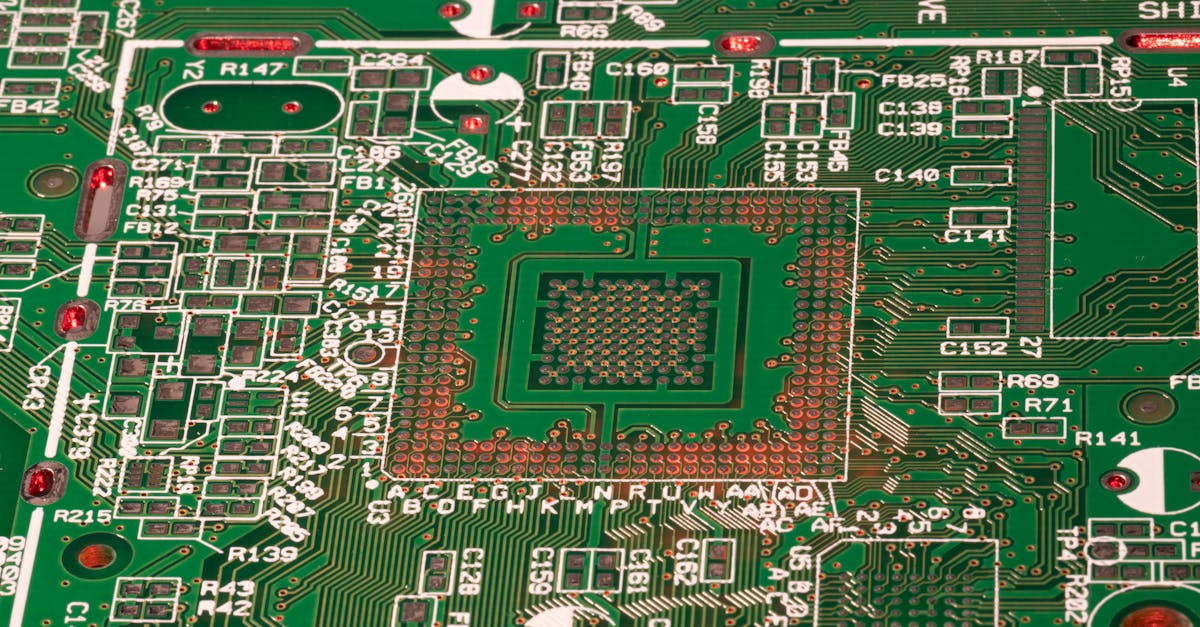
A printed circuit board is a flat sheet of insulating material (usually FR-4, a fibreglass-reinforced epoxy) with thin layers of copper bonded to one or both sides. You selectively remove copper to leave behind traces — the wires of your circuit.
Key PCB Terms
- Copper traces: The conductive paths that connect components. Think of them as flattened wires etched into the board.
- Pads: Copper areas where component leads are soldered. Through-hole pads have drilled holes; surface-mount pads are flat copper rectangles.
- Vias: Plated holes that connect traces on one layer to traces on another layer. A via is essentially a tiny vertical bridge through the board.
- Solder mask: The coloured coating (green, black, blue, red) that covers the copper. It prevents accidental solder bridges and protects traces from oxidation.
- Silkscreen: White printed text and symbols on the board surface — component labels (R1, C3, U2), orientation markers, your logo, and revision number.
- Board outline (Edge Cuts): The physical boundary of your PCB, usually defined as a closed shape in your design software.
- Copper pour / Ground plane: A large area of copper (often covering an entire layer) connected to ground. It improves noise performance, helps with heat dissipation, and simplifies routing.
Single-Layer vs Double-Layer vs 4-Layer
| Type | Layers | Typical Use | Approximate Cost (5 pcs, 100x100mm) |
|---|---|---|---|
| Single-layer | 1 copper layer | Very simple circuits, LED arrays, breakout boards | Cheapest, but rarely worth the routing headache |
| Double-layer | 2 copper layers (top + bottom) | Most hobby and prototype projects, microcontroller boards, sensor modules | Rs 150 - Rs 400 from budget fabs |
| 4-layer | 4 copper layers | High-speed designs, dense circuits, anything with DDR memory or USB 3.0 | Rs 800 - Rs 2000+ from budget fabs |
For beginners, double-layer is the sweet spot. It costs almost the same as single-layer from most manufacturers, and having a second copper layer (typically used as a ground plane) dramatically simplifies routing and improves signal integrity.
You need 4 layers when you have high pin-count ICs (like microprocessors with 100+ pins), high-speed differential pairs, or extremely dense layouts where two layers simply cannot fit all the traces.
PCB Design Software Comparison
| Software | Cost | Difficulty | Best For |
|---|---|---|---|
| KiCad | Free, open-source | Moderate | Recommended for beginners and professionals alike. No board-size limits, active community, excellent library ecosystem. |
| EasyEDA | Free (cloud-based) | Easy | Quick prototypes, tight integration with JLCPCB/LCSC parts ordering. Limited offline use. |
| Eagle (now Fusion 360 Electronics) | Free tier limited to 2 layers, 80 cm2 | Moderate | Legacy projects. Was the industry hobbyist standard, but KiCad has largely overtaken it. |
| Altium Designer | Rs 2,50,000+ / year | Hard | Professional production. Overkill and unaffordable for hobbyists. |
Our recommendation: KiCad. It is free with no restrictions, runs on Windows, Mac, and Linux, has a massive parts library, and the skills transfer directly to professional work. Version 8 (the current stable release) has a polished UI that rivals commercial tools.
The PCB Design Workflow
Every PCB design follows the same fundamental pipeline:
- Schematic capture -- Draw your circuit: components, connections, power nets.
- Footprint assignment -- Link each schematic symbol to a physical footprint (the copper pattern the real component solders onto).
- Board layout -- Define the board outline and place components in sensible positions.
- Trace routing -- Connect the pads with copper traces, either manually or with the auto-router.
- Design Rule Check (DRC) -- Let the software verify that no traces are too close, no pads are unconnected, and all clearances meet your manufacturer's capabilities.
- Gerber export -- Generate the industry-standard manufacturing files that every PCB fab accepts.
Let us walk through each step using a real project.
Step-by-Step: Designing an ESP32 Breakout Board in KiCad
We will design a simple but useful board: an ESP32-WROOM-32 breakout with a USB-C connector for power, an AMS1117-3.3 voltage regulator, decoupling capacitors, and 2.54mm pin headers exposing all GPIO pins. This is a board you could actually manufacture and use.
Step 1: Creating the Schematic
Open KiCad and create a new project. Open the Schematic Editor.
Add the core components:
- U1: ESP32-WROOM-32 -- Search the KiCad library for
ESP32-WROOM-32. Place it in the centre of your sheet. - U2: AMS1117-3.3 -- This linear regulator converts 5V USB power to the 3.3V the ESP32 needs. Find it under
Regulator_Linear. - J1: USB-C Receptacle -- Use
USB_C_Receptacle_USB2.0from the Connector library. We only need the power pins (VBUS, GND) and the CC resistors for basic power delivery. - J2, J3: Pin Headers -- Use
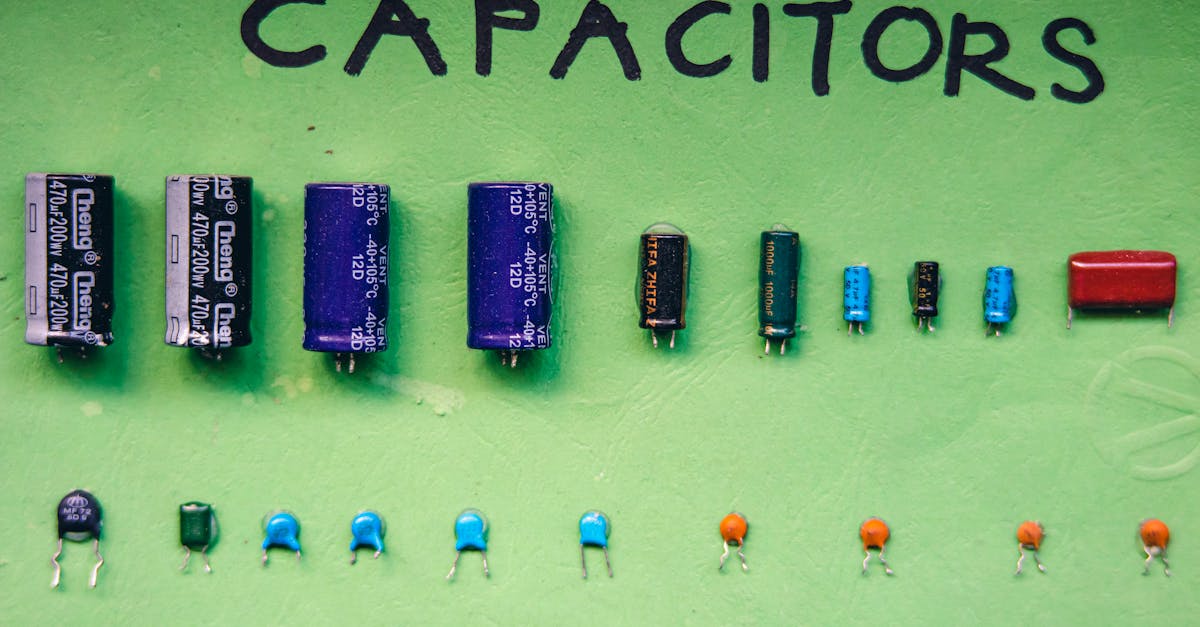
Conn_01x20_Pinfor two 20-pin headers (one on each side of the ESP32) to break out GPIO pins. - C1, C2: Decoupling capacitors -- 10uF and 100nF on the 3.3V rail, close to the ESP32 power pins.
- C3: Input capacitor -- 10uF on the 5V USB input, close to the regulator.
- R1, R2: USB-C CC resistors -- Two 5.1K resistors from each CC pin to GND. These tell the USB-C host to provide 5V.
- R3: EN pull-up -- 10K resistor from the ESP32 EN (enable) pin to 3.3V with a 100nF cap to GND for clean reset behaviour.
Wire everything up:
- Connect VBUS from the USB connector through C3 to the AMS1117 input.
- Connect the AMS1117 output to the ESP32 3V3 pin, with C1 and C2 close by.
- Connect all GND pins to a common GND net.
- Run the GPIO pins from the ESP32 to the corresponding header pins.
- Add power flags to your VCC and GND nets (KiCad requires these to pass the Electrical Rules Check).
Run the Electrical Rules Check (ERC) and fix any warnings. Common issues: unconnected pins that should be marked "no connect" with an X flag, or missing power flags.
Step 2: Assigning Footprints
Open Tools > Assign Footprints (or click the footprint assignment button).
For each component, select the correct physical footprint:
| Component | Footprint |
|---|---|
| ESP32-WROOM-32 | RF_Module:ESP32-WROOM-32 |
| AMS1117-3.3 | Package_TO_SOT_SMD:SOT-223-3_TabPin2 |
| USB-C connector | Connector_USB:USB_C_Receptacle_GCT_USB4105 (or your specific part) |
| 10uF capacitor | Capacitor_SMD:C_0805_2012Metric |
| 100nF capacitor | Capacitor_SMD:C_0402_1005Metric (or 0603 if hand-soldering) |
| 5.1K / 10K resistors | Resistor_SMD:R_0402_1005Metric (or 0603) |
| Pin headers | Connector_PinHeader_2.54mm:PinHeader_1x20_P2.54mm_Vertical |
Tip for hand-soldering: Stick with 0603 or 0805 sized passives. 0402 components are only 1mm long and extremely difficult to solder without a microscope and fine-tip iron.
Step 3: Board Layout
Click Update PCB from Schematic to import all components into the PCB editor. They will appear in a heap — your job is to arrange them logically.
Define the board outline:
Switch to the Edge.Cuts layer and draw a rectangle. For this breakout board, something like 55mm x 28mm works well. Use the rectangle tool and enter exact coordinates.
Place components strategically:
- USB-C connector at the top edge of the board (or whichever edge faces outward in your enclosure).
- AMS1117 regulator close to the USB connector, with input and output capacitors within 5mm.
- ESP32 module in the centre of the board.
- Pin headers along the left and right edges, aligned for breadboard compatibility (if desired, space them 22.86mm apart for standard breadboard straddling).
- Decoupling capacitors (C1, C2) as close to the ESP32 power pins as physically possible. Closer is always better for decoupling.
Step 4: Routing Traces
Now connect everything with copper traces. Select the Route Tracks tool (shortcut: X).
Trace width guidelines:
| Trace Type | Recommended Width | Reason |
|---|---|---|
| Power traces (5V, 3.3V, GND) | 0.5mm - 1.0mm | Carries higher current, reduces voltage drop |
| Signal traces (GPIO, SPI, I2C) | 0.25mm - 0.3mm | Adequate for low-current digital signals |
| USB data lines (if used) | 0.3mm, matched length | Signal integrity for differential pairs |
Routing tips:
- Route power traces first -- they need to be wide, so give them priority.
- Use the bottom copper layer as a ground plane. After routing all traces on the top layer, add a copper pour on the bottom layer connected to GND. This gives you excellent ground return paths and reduces electromagnetic interference.
- Keep traces as short and direct as possible. Avoid 90-degree angles -- use 45-degree bends instead (this is mostly cosmetic at low frequencies, but good practice).
- Use vias to jump between layers when traces need to cross. KiCad's default via size (0.8mm drill, 0.4mm hole) works for most hobby projects.
Step 5: Design Rule Check (DRC)
Run Inspect > Design Rules Check. KiCad will flag:
- Clearance violations: Traces or pads too close to each other.
- Unconnected nets: Pads that should be connected but are not (the "ratsnest" lines).
- Track width violations: Traces narrower than your minimum rule.
- Via drill size issues: Holes too small for your manufacturer.
Set your DRC rules to match your chosen manufacturer's capabilities. For JLCPCB:
| Parameter | Minimum Value |
|---|---|
| Trace width | 0.127mm (5 mil) |
| Trace spacing | 0.127mm (5 mil) |
| Via hole diameter | 0.3mm |
| Via outer diameter | 0.6mm |
| Board thickness | 1.6mm (standard) |
Fix all errors. Warnings about silkscreen overlap are usually non-critical but worth cleaning up for a professional result.
Step 6: Generating Gerber Files
Go to File > Fabrication Outputs > Gerbers. Select an output directory and ensure these layers are included:
- F.Cu -- Front copper
- B.Cu -- Back copper
- F.SilkS -- Front silkscreen
- B.SilkS -- Back silkscreen
- F.Mask -- Front solder mask
- B.Mask -- Back solder mask
- Edge.Cuts -- Board outline
Also generate the drill file (Excellon format) from File > Fabrication Outputs > Drill Files.
Zip all the Gerber files and the drill file into a single archive. This zip file is what you upload to the manufacturer.
Always preview your Gerbers before ordering. Use KiCad's built-in Gerber viewer or the free online viewer at your manufacturer's website. Check that the board outline is correct, all pads are present, and the silkscreen is readable.
PCB Manufacturing in India: Where to Order
| Manufacturer | Base Price (5 pcs, 100x100mm, 2-layer) | Lead Time | Shipping to India | Notes |
|---|---|---|---|---|
| JLCPCB (China) | Rs 150 - Rs 200 | 2-3 days production | 7-15 days (standard), 4-7 days (DHL) | Cheapest option, excellent quality for prototypes. PCBA service available. |
| PCBWay (China) | Rs 350 - Rs 500 | 2-3 days production | 7-15 days | Slightly pricier, good customer service, more finish options. |
| Lion Circuits (Bangalore) | Rs 800 - Rs 1500 | 3-5 days production | 2-3 days domestic shipping | Made in India, faster total turnaround, good for urgent prototypes. |
For most beginners, JLCPCB offers the best value. Five boards for under Rs 200 (before shipping) is remarkably cheap. Shipping via standard post takes about two weeks; DHL Express cuts that to under a week but costs more.
Lion Circuits is worth the premium when you need boards fast and want to avoid customs delays, or when you prefer supporting domestic manufacturing.
Common Beginner Mistakes
1. Traces too thin for power lines. A 0.15mm trace carrying 500mA will heat up and potentially fail. Use the trace width table below.
2. No ground plane. Skipping the ground pour on your second layer is the single biggest mistake beginners make. A solid ground plane improves noise performance, simplifies routing (just via down to ground anywhere), and helps with thermal management.
3. Components too close together. Leave at least 1mm between component bodies for hand-soldering. Hot air rework needs even more space. Your soldering iron tip is physically larger than you think.
4. Wrong footprints. Your 10uF capacitor in the schematic might be a 0402, 0603, 0805, or 1206 in real life. Always verify the footprint dimensions match the actual part you plan to solder. Download the manufacturer's recommended footprint from the datasheet.
5. Forgetting decoupling capacitors. Every IC needs at least one 100nF ceramic capacitor between its power pin and ground, placed as close to the pin as possible. The ESP32 datasheet recommends both 10uF and 100nF.
6. Ignoring the datasheet. The ESP32-WROOM-32 datasheet specifies a keep-out zone under the antenna. Placing copper (traces or ground plane) under the antenna degrades WiFi performance significantly. Always read the module's layout guidelines.
Design Rules of Thumb
Trace Width vs Current (1oz copper, 10 deg C temperature rise)
| Current | Minimum Trace Width |
|---|---|
| 0.5A | 0.25mm |
| 1.0A | 0.50mm |
| 2.0A | 1.15mm |
| 3.0A | 2.00mm |
| 5.0A | 3.60mm |
These values are for external (outer) layers. Internal layers need approximately double the width for the same current because heat dissipation is worse.
Other Key Rules
- Via current capacity: A standard 0.3mm drill via handles about 1A. Use multiple vias in parallel for power connections.
- Clearance: Maintain at least 0.2mm (8 mil) between traces for low-voltage circuits. For mains voltage, you need much larger creepage distances (consult IPC standards).
- Copper weight: Standard is 1oz (35um). Use 2oz copper for high-current boards (most fabs offer this as an option for a small upcharge).
Surface Mount vs Through-Hole
| Aspect | Through-Hole (THT) | Surface Mount (SMD) |
|---|---|---|
| Ease of hand-soldering | Easy -- push through hole, solder | Harder -- requires steady hands, fine-tip iron |
| Board space | Large footprints | Compact, fits more on smaller boards |
| Cost at scale | Higher (drilling is expensive) | Lower (pick-and-place machines are fast) |
| Best sizes for hand work | DIP, TO-220, axial | 0805, 0603 passives; QFP or wide-pitch ICs |
Practical advice: Use through-hole for connectors, pin headers, and large components (voltage regulators in TO-220 packages). Use surface-mount for resistors, capacitors, and ICs where board space matters. The ESP32-WROOM-32 module itself is a surface-mount component with castellated pads.
Getting Your First PCB Assembled
Hand Soldering
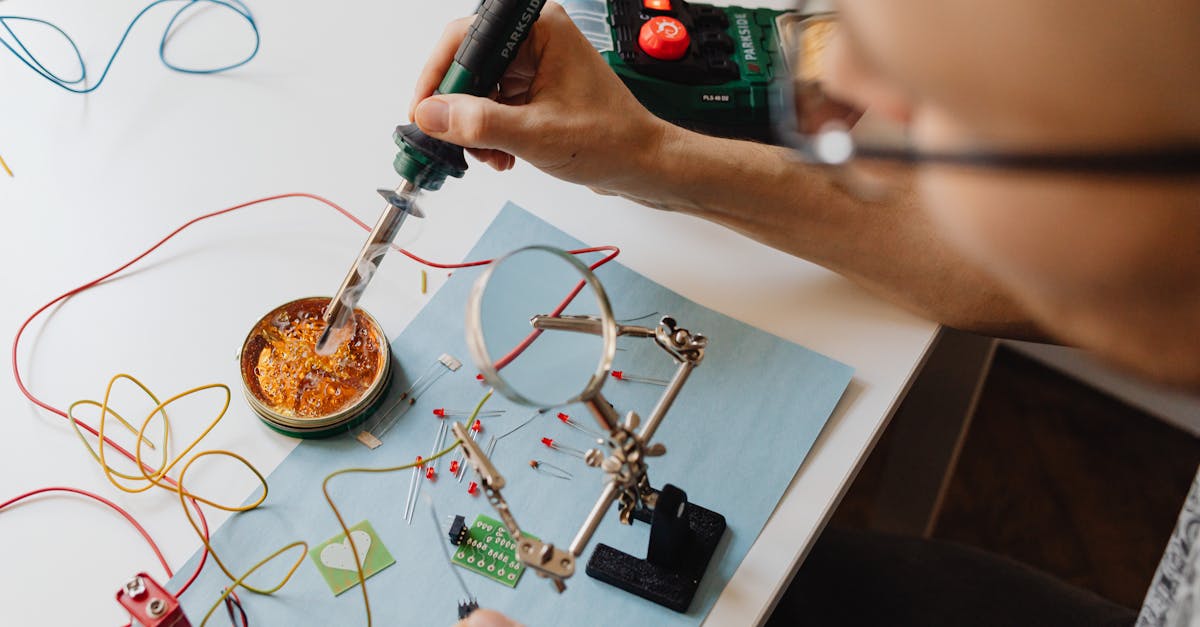
For a simple breakout board with 20-30 components, hand-soldering is perfectly practical. You need:
- A temperature-controlled soldering iron (look for 60W adjustable stations in the Rs 1500 - Rs 3000 range)
- Solder wire (0.5mm diameter, 63/37 tin-lead for easier melting, or lead-free if you prefer)
- Flux (no-clean liquid flux makes SMD work dramatically easier)
- Tweezers (fine-tip, for placing SMD components)
- Solder wick or desoldering pump (for fixing mistakes)
PCBA Service
If your board has more than 50 components, or uses fine-pitch ICs (QFN, BGA), consider a PCB Assembly (PCBA) service. Both JLCPCB and PCBWay offer assembly:
- JLCPCB PCBA: Starts around Rs 600 for 5 boards (plus component cost). They stock thousands of common parts through LCSC. You upload your BOM (Bill of Materials) and pick-and-place file alongside the Gerbers.
- PCBWay PCBA: Similar pricing, supports more component sources.
- Lion Circuits: Offers turnkey assembly within India.
PCBA services make sense when you value your time, need consistent quality, or are producing more than a handful of units.
From Prototype to Production
Once your first revision works, here is how to scale up:
Revision Management
- Always increment your revision number (Rev 1.0, Rev 1.1, Rev 2.0) and print it on the silkscreen. You will thank yourself when you have three slightly different boards on your desk.
- Keep your KiCad project in version control (Git). Commit after every significant change with a descriptive message.
- Maintain a changelog noting what changed in each revision and why.
Panelization
When ordering larger quantities, panelization saves money. Multiple copies of your board are arranged on a single larger panel with V-score or mouse-bite tab connections. After assembly, you snap them apart.
- JLCPCB and PCBWay both offer auto-panelization.
- For custom panel layouts, KiCad has a panelization plugin (KiKit) that automates the process.
Testing
- Add test points to critical nets (power rails, key signals) in your PCB design. These are small exposed pads that you can probe with a multimeter or oscilloscope.
- For production runs, design a simple test jig with pogo pins that contacts your test points and verifies basic functionality (power rails at correct voltage, microcontroller responds to a serial command).
- Run a basic power-on test before populating expensive components: solder just the voltage regulator and capacitors, apply power, and verify 3.3V output before soldering the ESP32.
Next Steps
You now understand the full pipeline from breadboard to manufactured PCB. Here is a suggested learning path:
- Install KiCad and complete the official getting-started tutorial.
- Design a simple board -- an LED blinker with an ATtiny85 or a sensor breakout board. Keep it under 15 components for your first attempt.
- Order from JLCPCB -- the low cost means mistakes are cheap lessons, not expensive disasters.
- Solder and test your board. Document what worked and what you would change.
- Iterate. Revision 2 is always better than revision 1.
Every professional PCB designer started exactly where you are now. The barrier to entry has never been lower: free software, cheap manufacturing, and a wealth of community knowledge. Your first board will not be perfect, and that is fine. Order five copies, solder one, learn from the mistakes, and improve the next revision.
Browse our collection of ESP32 modules, sensors, and components at wavtron.in to find the parts for your first PCB project. If you need specific components or have questions about footprint selection, reach out to us -- we are happy to help fellow makers level up their electronics game.